
Online Banking
Bank Frick Online Banking
Our online banking platform provides a modern, clearly structured interface for the day-to-day management of your finances. It consolidates core functions, such as account overviews, payments, and trading, into a single intuitive workspace, offering direct access to all essential services.
Overview
Payments
Enter domestic and international payments in various currencies, and review or authorise outgoing payments – including bulk authorisation.
Accounts
An overview of all accounts and transactions with real-time balance enquiries.
Trading
A clear presentation of all stock market orders, including full details and current status.
Digital communication and documents
Generate account and custody account statements, and other documents, as required.
Advantages of Bank Frick Online Banking

Clear and intuitive structure
The new dashboard displays all key financial information, including account balances, asset overviews, payments, and messages, clearly and logically within a single interface.
High security standards
Advanced multi-factor authentication, robust security mechanisms, and continuously updated standards protect your data – both at login and during every transaction.
Simple, modern interface – even mobile
Clear categories such as Accounts, Payments, Trading, and the Hub ensure intuitive navigation.
Available at any time
Access your accounts, custody accounts, and documents at any time. Check balances, authorise payments, or generate account statements exactly when you need to. Execute internal transactions, including those involving currency exchange, 23/7 – for example, using Bank Frick xPULSE.
Technical flexibility with Web API
Integrate online banking into your own systems or external applications, such as accounting software or bespoke reporting solutions, via our Web API.
Online Banking log-in
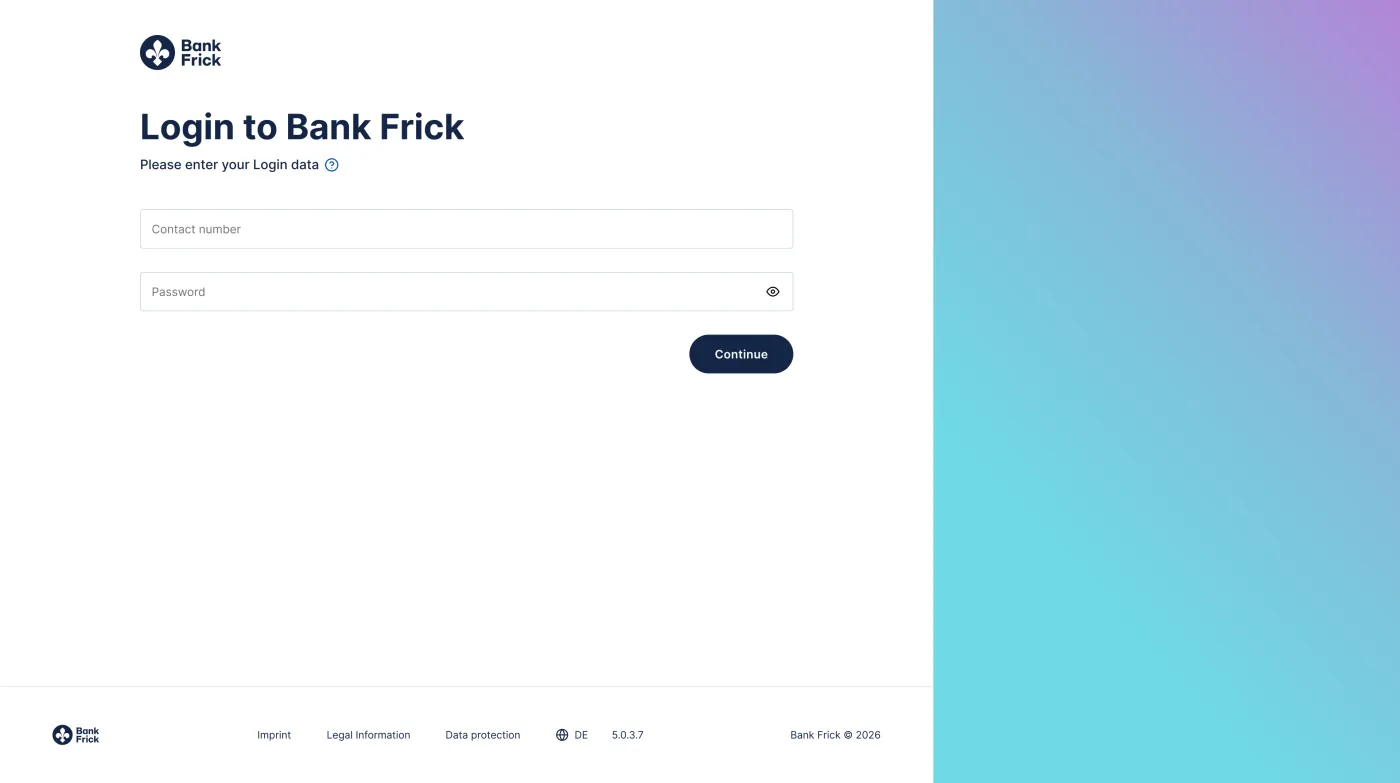
Your account log-in is protected by a secure three-step authentication process. Simply log in using your User ID and personal password, followed by a unique TAN for final verification.
Functions
The account overview provides an at-a-glance view of your total balance across all accounts. Graphical displays help you quickly get your currency breakdown. The Transaction Overview provides a clear summary of all outstanding, ongoing, and completed transactions.
Overview
- Currency overviews with graphical displays
- Consolidated overview of your account assets across your currencies
- Transaction details directly accessed
Transaction Overview
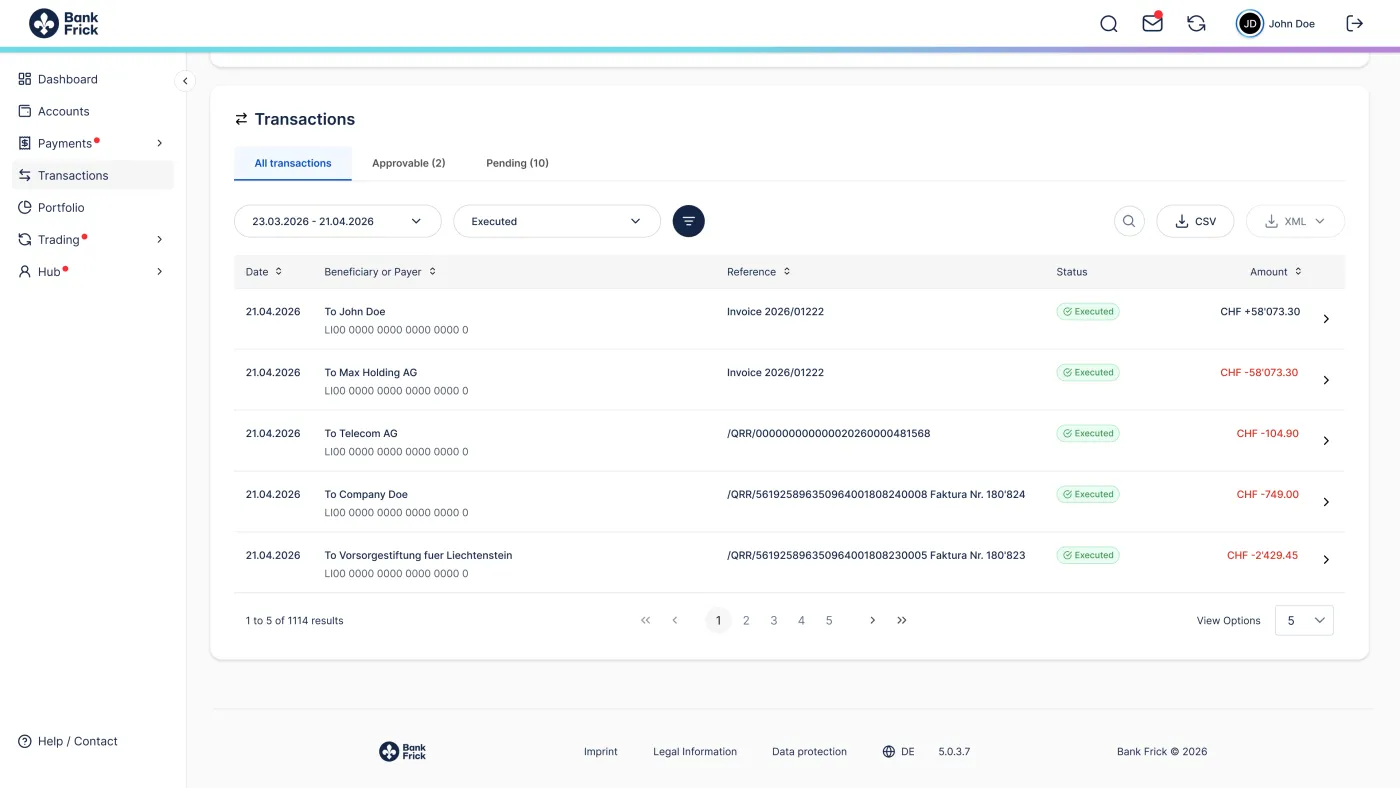
All account movements can be clearly viewed in the Transaction Overview. Using the integrated search and filter functions, transactions can be narrowed down specifically according to various criteria. This ensures you maintain a clear overview of completed, pending, and transactions awaiting authorisation at all times.
The Payments section helps you to manage your transactions clearly and efficiently. You can enter domestic and international payments in various currencies, monitor outgoing payments, and authorise individually or as a batch as required. Additional functions such as standing orders, payment templates, QR bills, and payment imports enable the flexible processing of both simple and extensive payment documents. Internal transactions, including those involving currency exchange, can be processed 23/7 using xPULSE.
Overview
- Check and authorise outgoing payments – including bulk authorisation
- Enter domestic and international payments in various currencies
- Create, edit, and delete standing orders and payment templates
- Process QR bills conveniently via upload
- Payment import supporting various file types, e.g. pain.001
- Process internal transactions 23/7 using xPULSE
More Functions
QR bill via upload
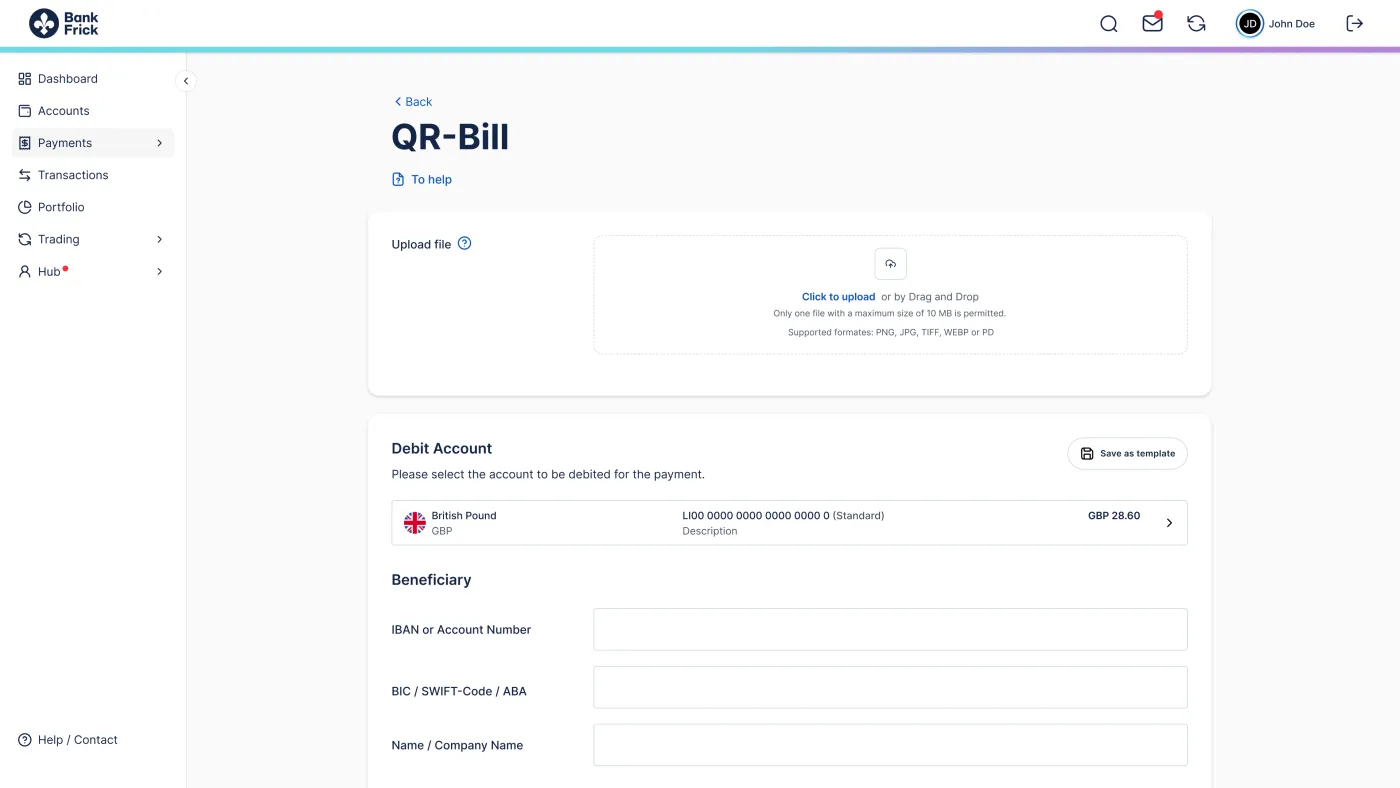
When uploading a QR-Bill, all relevant payment data is automatically transferred. This function is listed on the Dashboard or under «Payments → New Payment → QR-Bill».
Bulk authorisation of payments
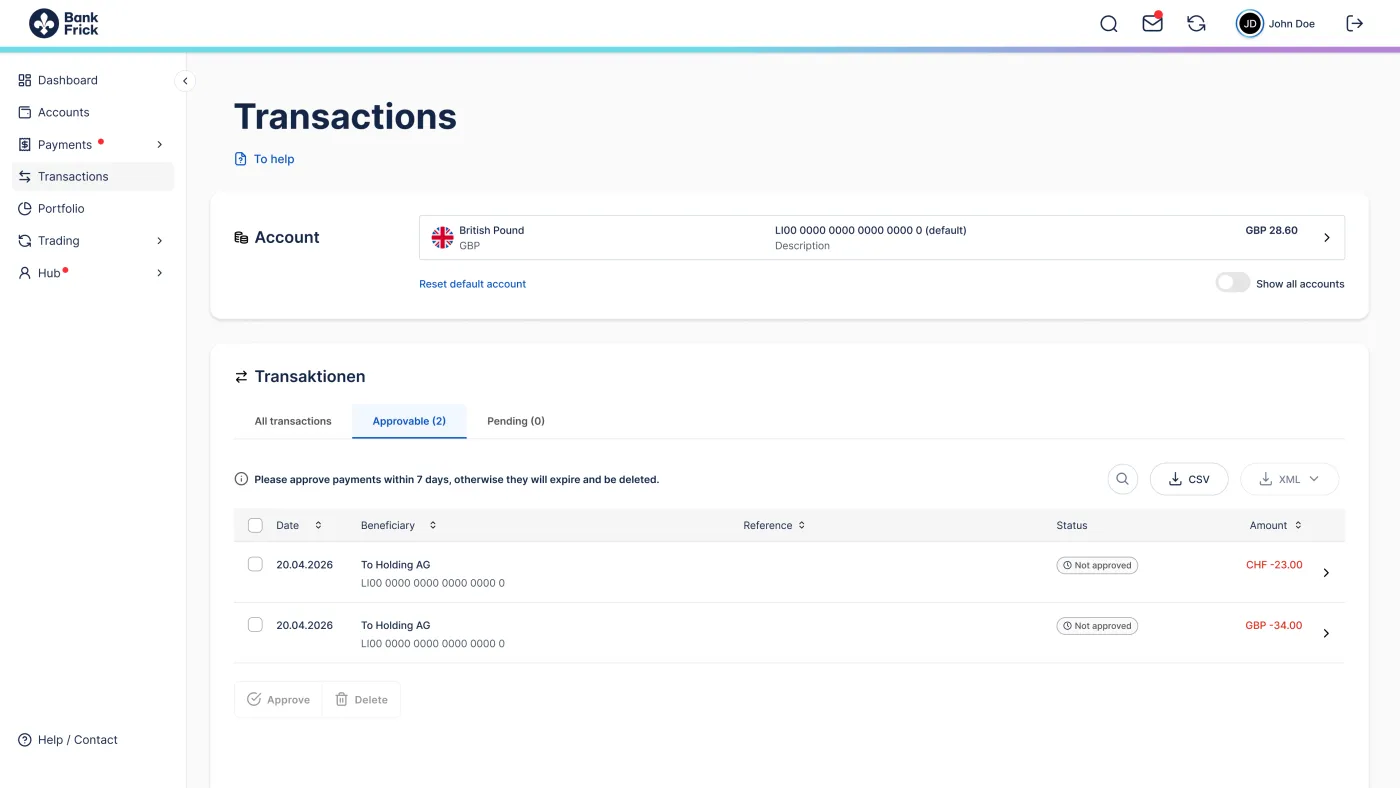
Multiple payment orders can be reviewed and authorised as a batch. The function is listed under «Transactions → Approvable». Select the respective payments and authorise them simultaneously using the «Approve» button.
Payment import
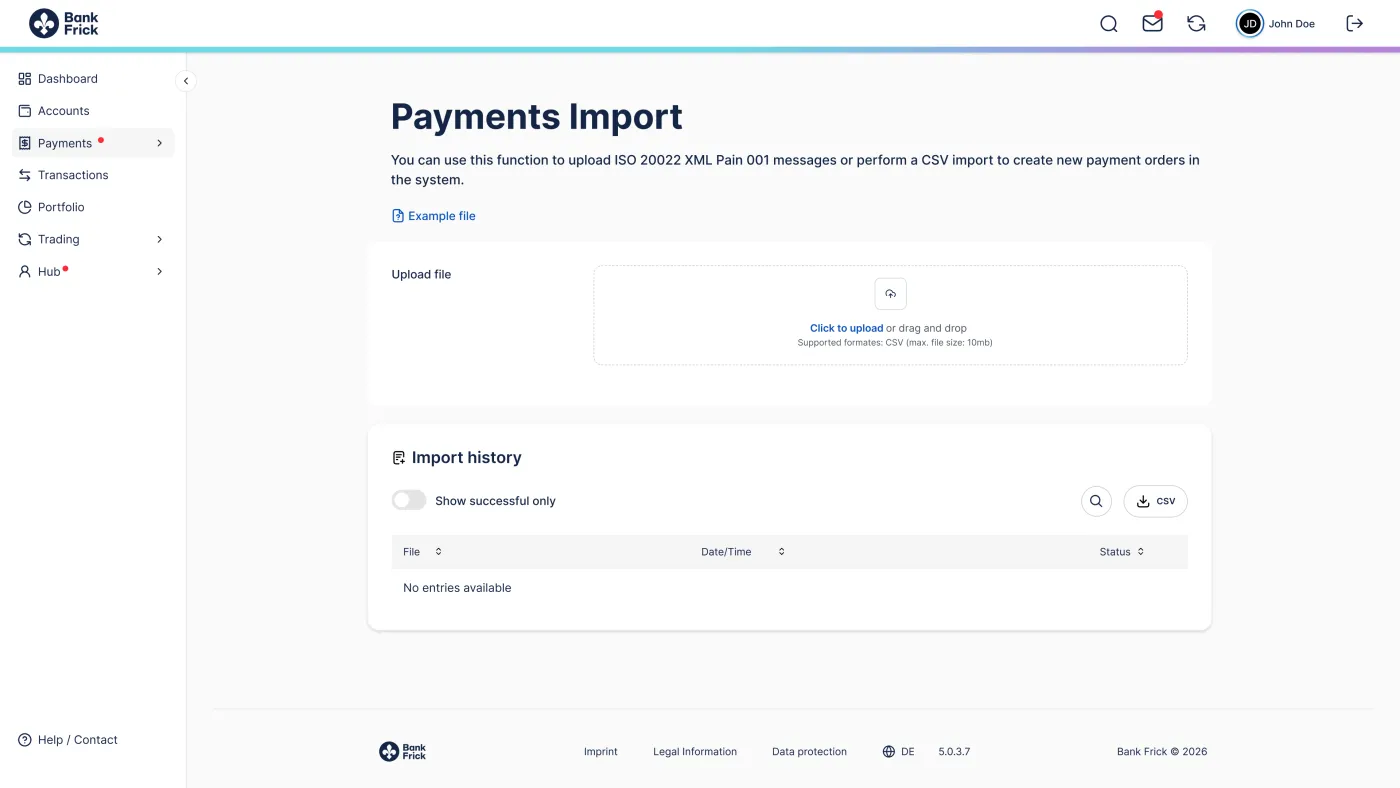
Import payment orders quickly using «Payments → Payment Import» – either with ISO-20022-XML (pain.001) or CSV file.
Through Digital Communication you can efficiently manage all messages and documents relating to your banking affairs from a central and secure platform. Electronic bank documents, account statements, or tax-related documents can be viewed as PDFs at any time. You can set these to be generated automatically and stored in your personal document archive. Thanks to flexible notification options, you get a complete overview at all times: You decide whether you want to receive information via push notification, email, your secure inbox, or via WebHook.
Overview
- Generate electronic bank documents as PDFs and store them in the document archive
- Flexible notification channels: Push notifications, email, secure inbox, and WebHook
- Individual management of your notification settings
More Functions
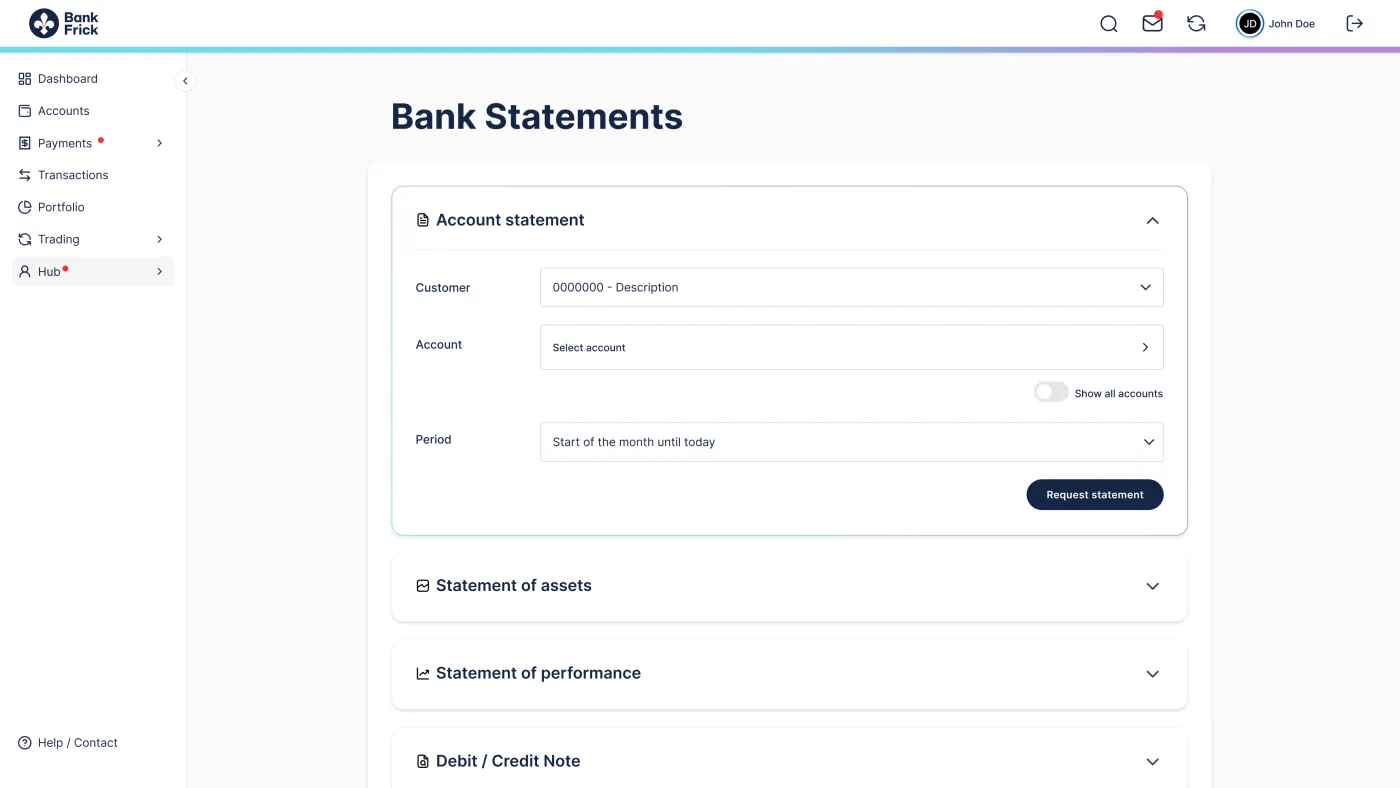
In the «Dashboard» or the «Hub → Bank Statements» menu item, you can generate electronic bank documents such as account statements or tax-related documents in PDF format. These documents will then be available for download in your secure inbox.
The Portfolio section provides you with a clear overview of your investment assets. Your assets are presented in a clear structure and can be viewed in detail as required. Graphical displays help you to quickly understand the composition of your portfolio by asset class.
Overview
- Overview of all assets within the portfolio
- Clear presentation of market orders and their current status
- Entry of individual orders as well as multi-account block orders
- Authorisation of multiple orders in a single step
- Import of market orders via CSV files
- Trading of selected cryptocurrencies
More Functions
Market order as an individual order or block order
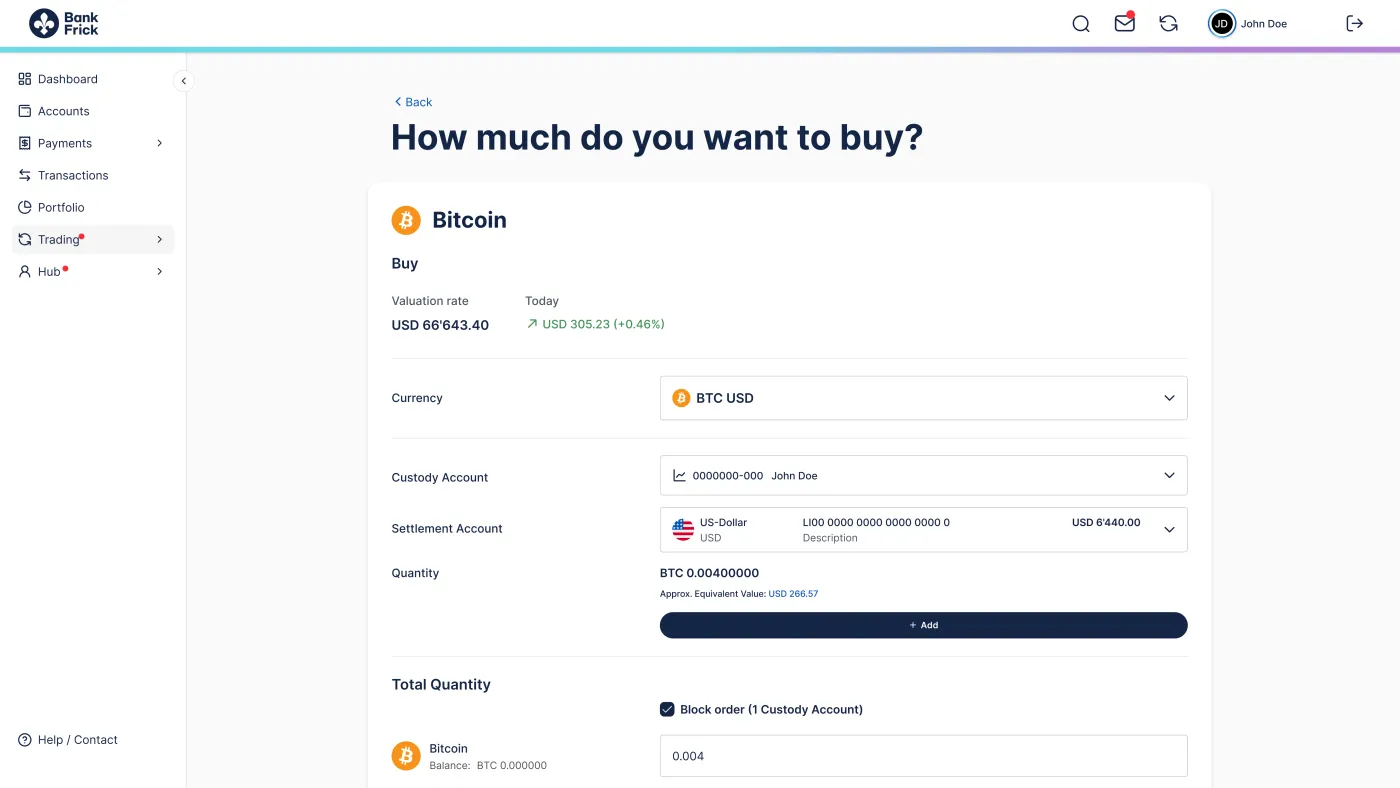
Access order entry via the Dashboard or the «Trading → New Order» menu item. If multiple custody accounts are held, the «Block Order» option is available in the Advanced Order section, allowing orders to be entered and executed across multiple accounts.
Order Import
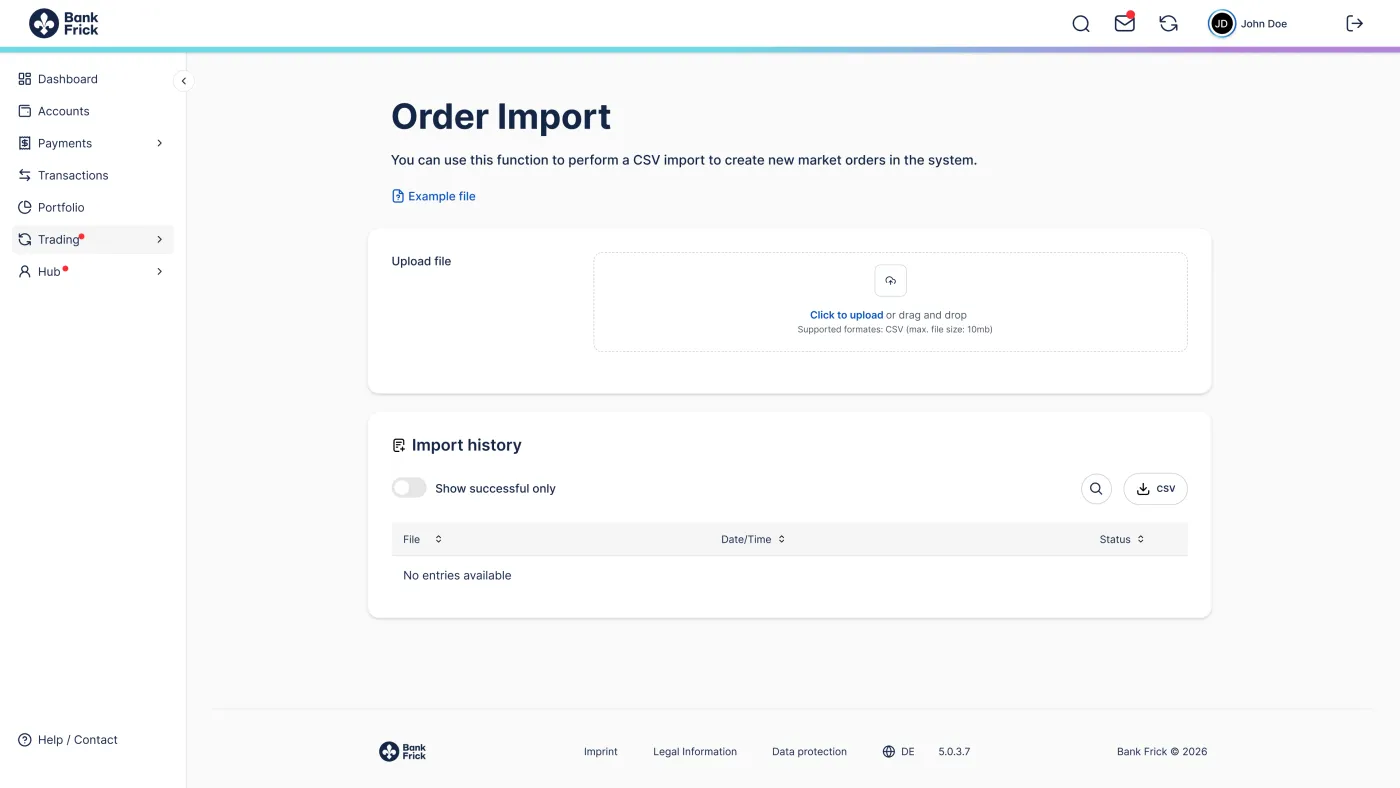
«Import Trading → Order Import», market orders via CSV file as new orders.
Crypto Currencies
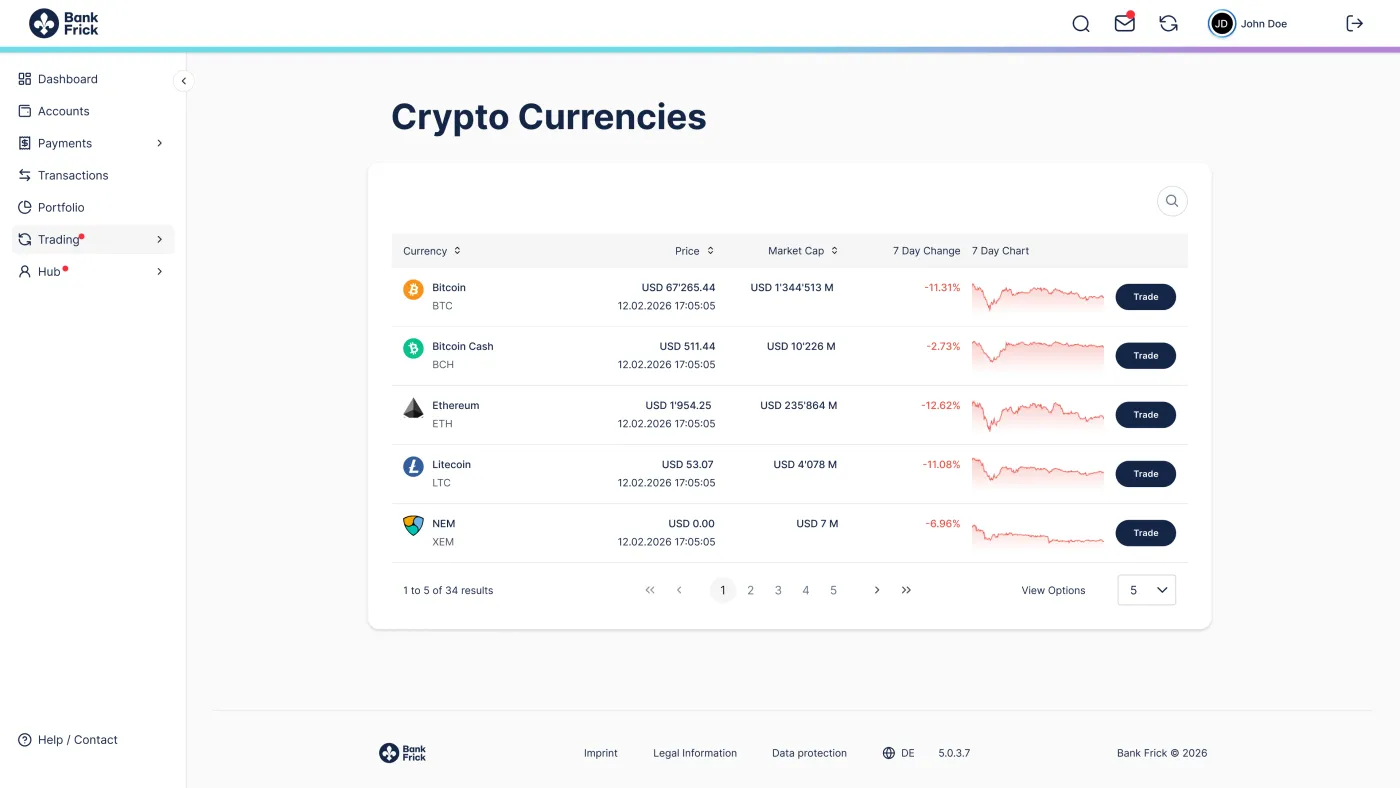
Access tradable crypto currencies via the Dashboard or via «Trading → Crypto Currencies». There you will find an overview of the available products and can enter the corresponding orders.
Admin Cockpit – Access and transaction rights
The Admin Cockpit from Bank Frick is designed for businesses working with multiple users who require differentiated access and transaction rights within Online Banking. It features a flexible permissions system that can be tailored to the individual needs of your company.
Advantages of Bank Frick Admin Cockpit
Save time, reduce effort and gain transparent control
Clear overview of all access, authorisation and transaction rights in the Admin Cockpit and conveniently manage and adjust them online.
Efficiency in daily operations
Easily adjust permissions when staff members join, leave or change roles – with no delays.
Maximum flexibility
As an administrator, you manage permissions independently at any time, without additional steps involving Bank Frick. Technical users are limited to the access rights defined by the administrator and do not have signing authority.
Key features at a glance
Payment rights
- Allow account viewing
- Enable payment order initiation
Custody account rights
- Allow custody account viewing
- Enable securities order initiation
Inbox rights
- Automatic filing of documents in the inbox
- Option to request documents
Account and custody account assignment
- Flexible user selection when assigning accounts and custody accounts
Two-factor authentication
- Choose between SMS OTP or PushTAN app for authentication
More Functions
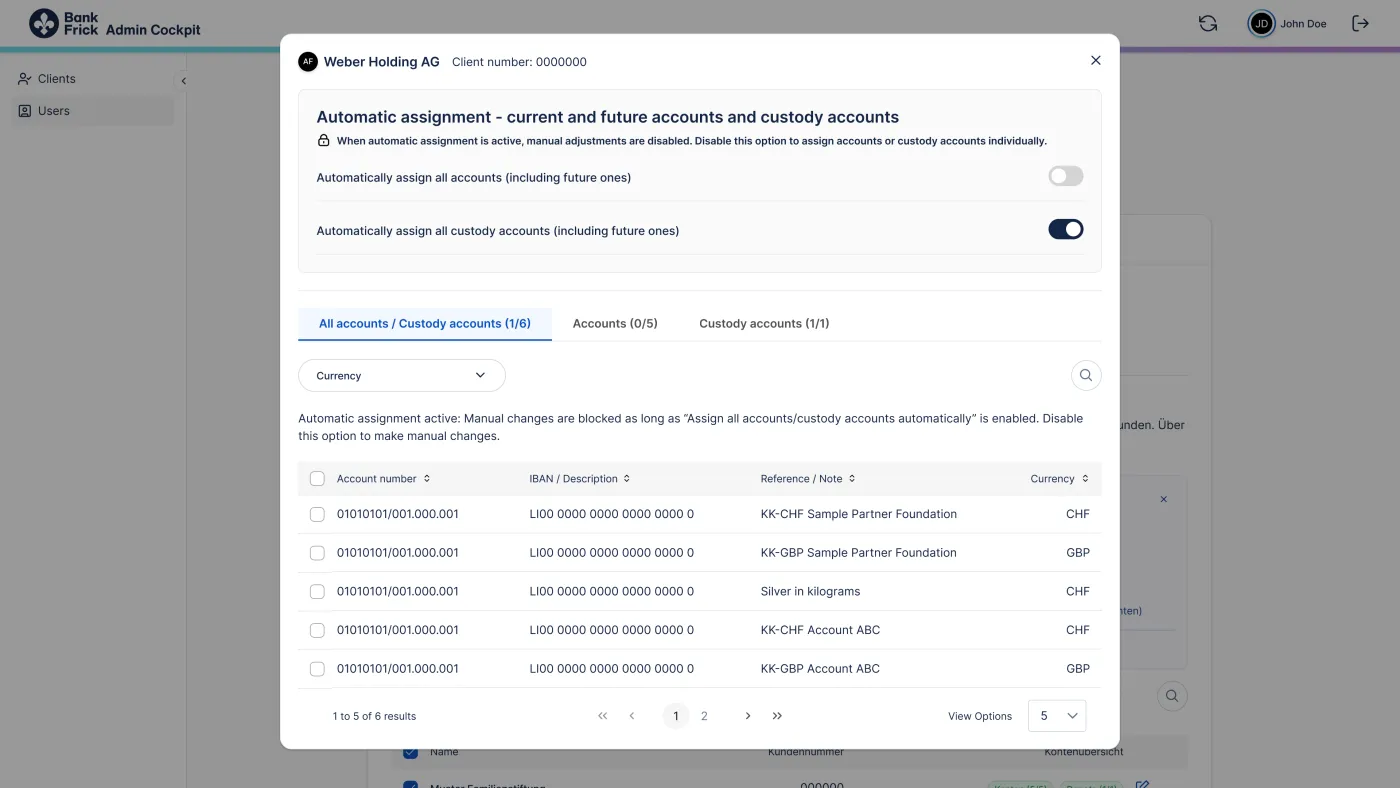
Under «Assign Clients», you select which data is accessible to each user. The assignment can be automated for all current and future accounts and custody accounts of a client, or specifically managed for individual accounts using the edit function. This option can be found under «User → Assign Clients».
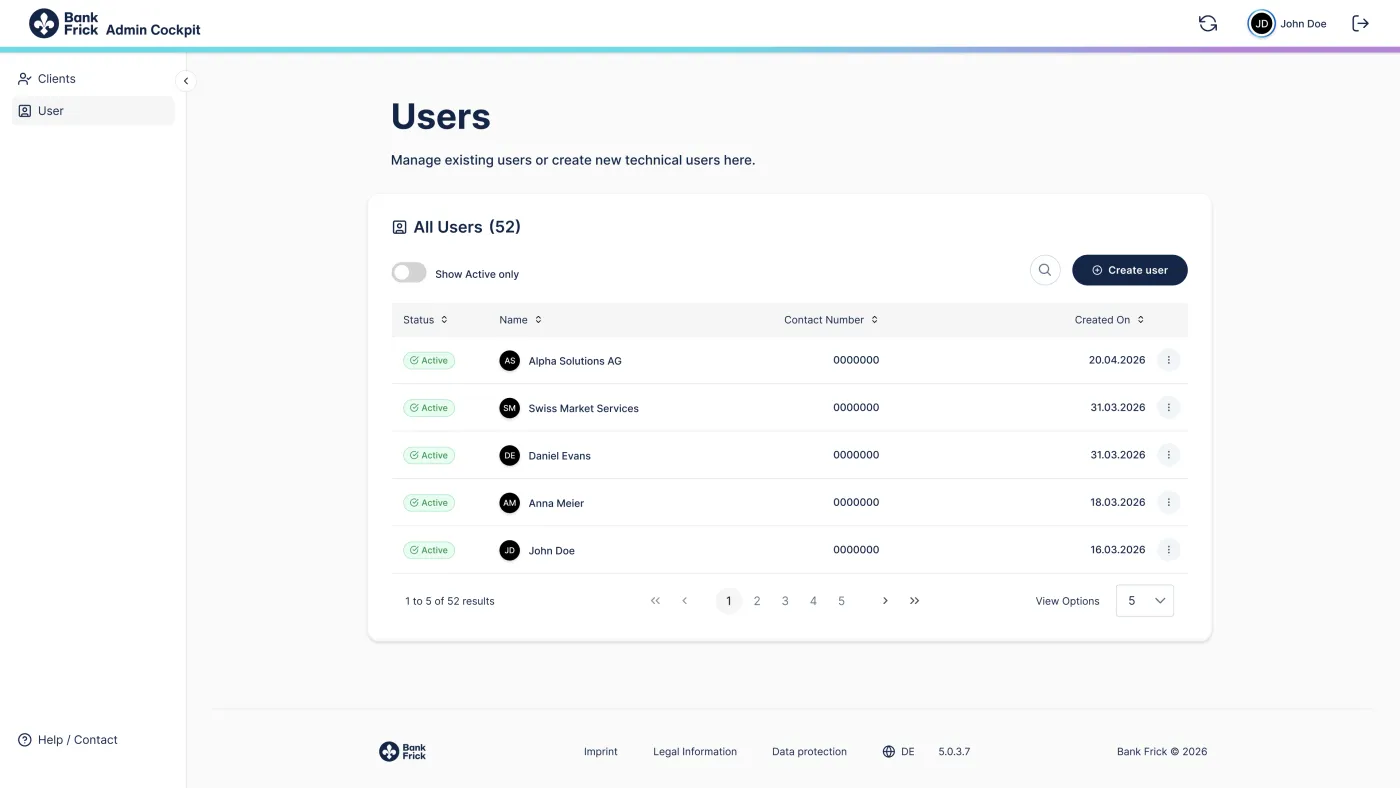
In the Admin Cockpit, you can create new users via the menu item «Users or Clients → Create User». You will then be guided through the process to fully set up the user profile.